Create the scene in Nuke
The frist thing we will need to do is a camera tracking in the shot we are going to use. The camera tracking is used to locate tracking points in the scene and track the movement of the camera. Then, it creates a 3D environment with the scene in which the camera is also placed.
Roto
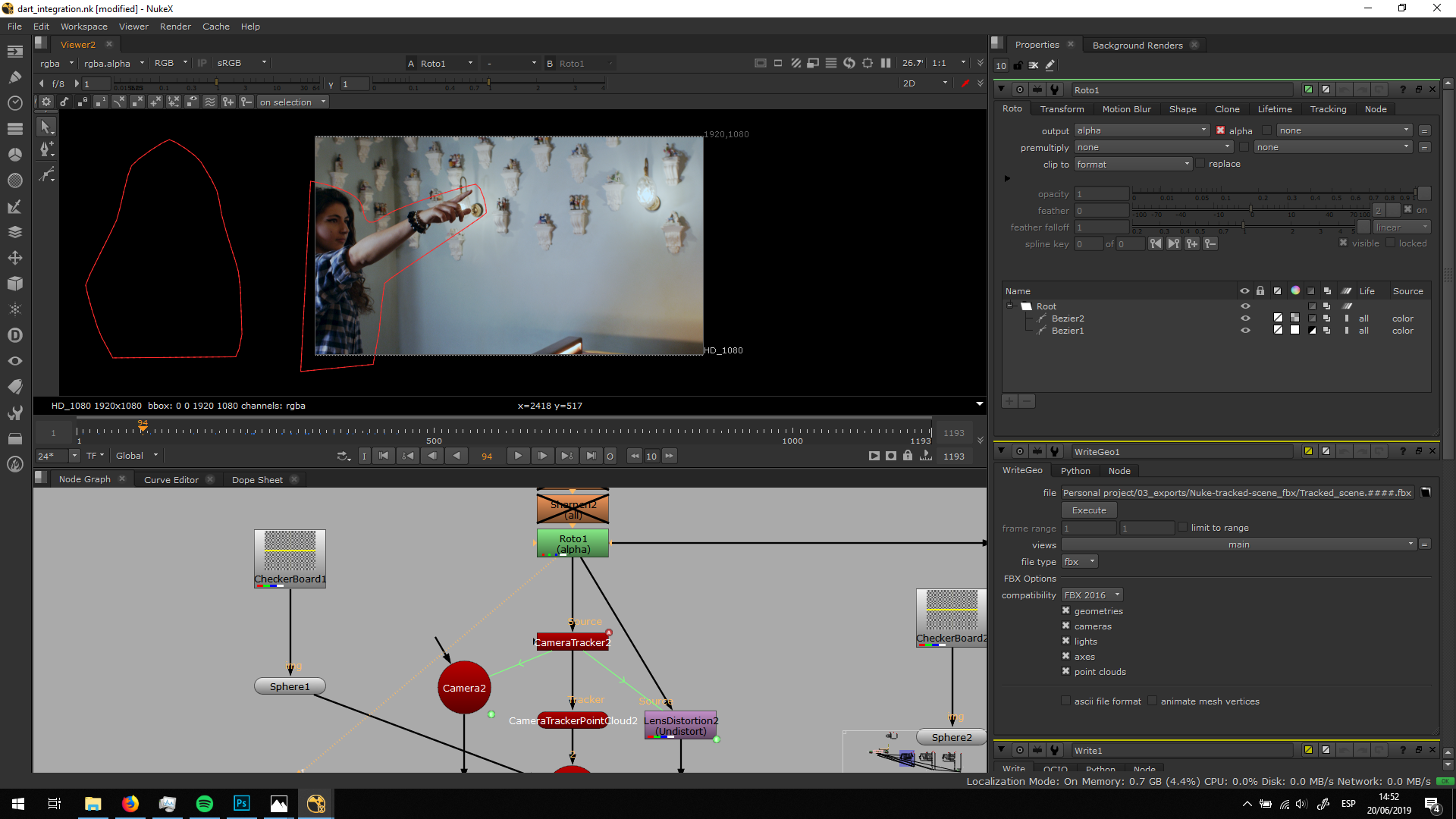
The first thing we need to do is roto out those elements which have movement by themselves. In this case, i rotoed out the main character.
Camera track
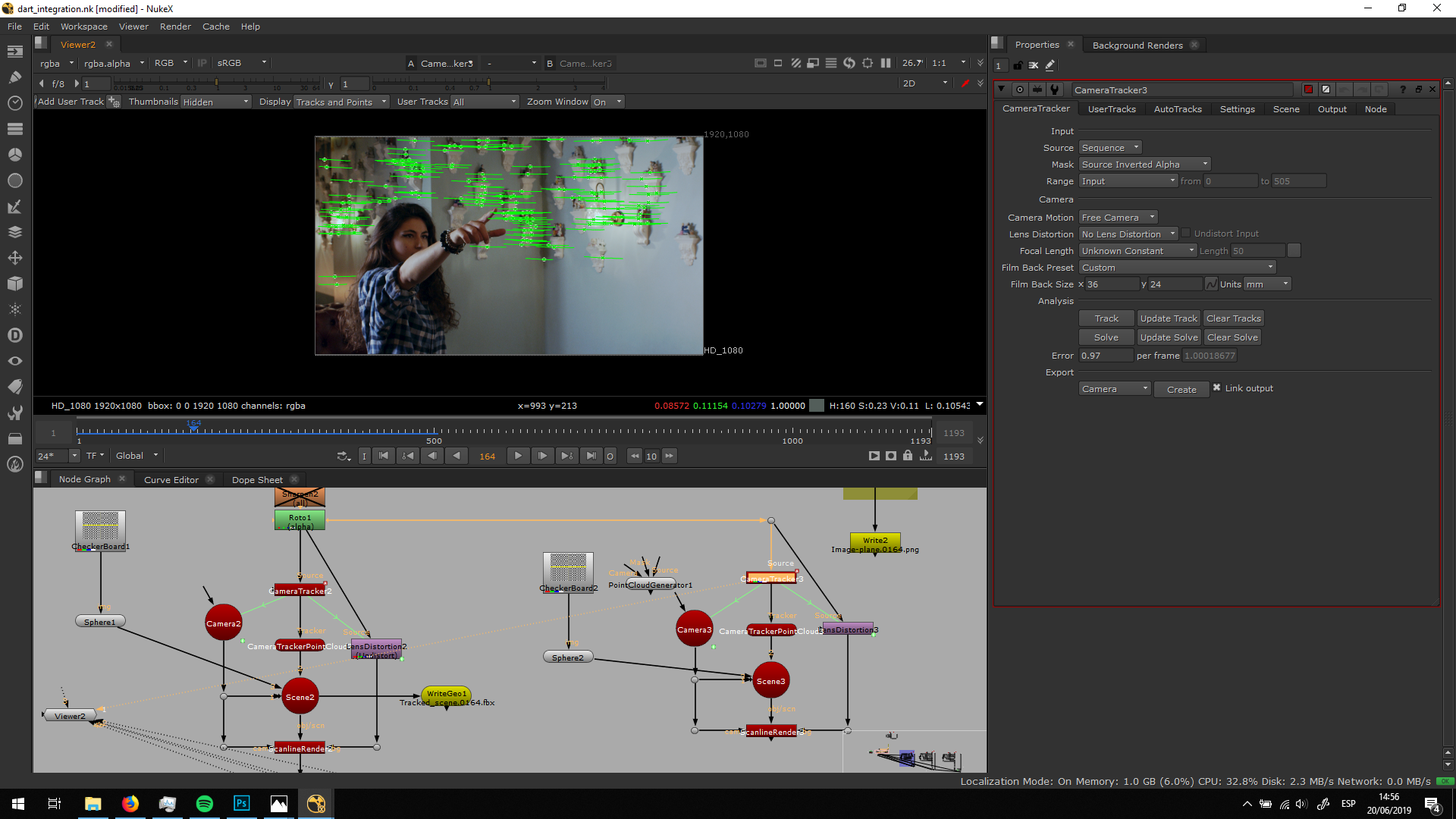
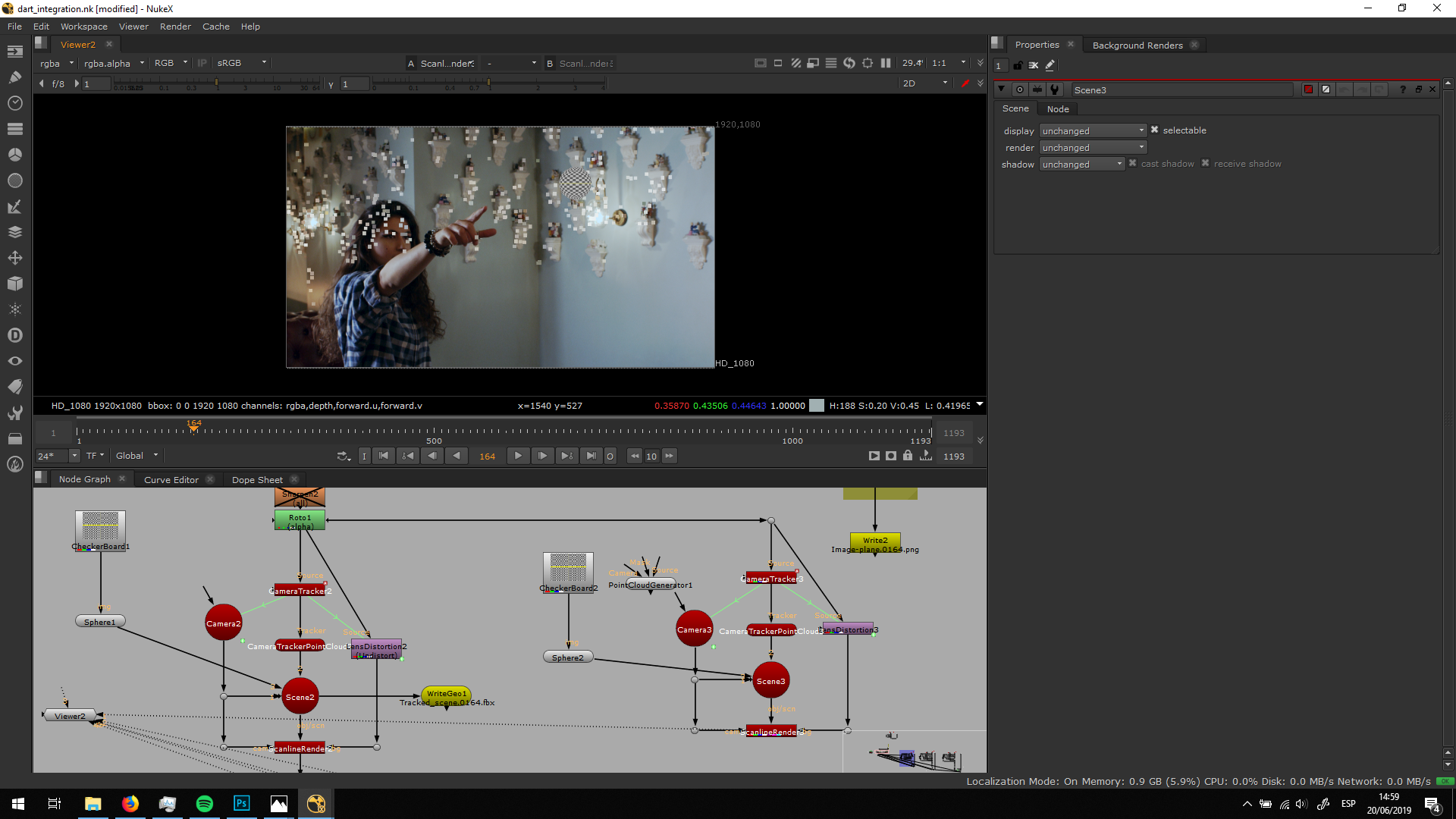
Then, I applied a camera tracker, fix the settings and create the scene.
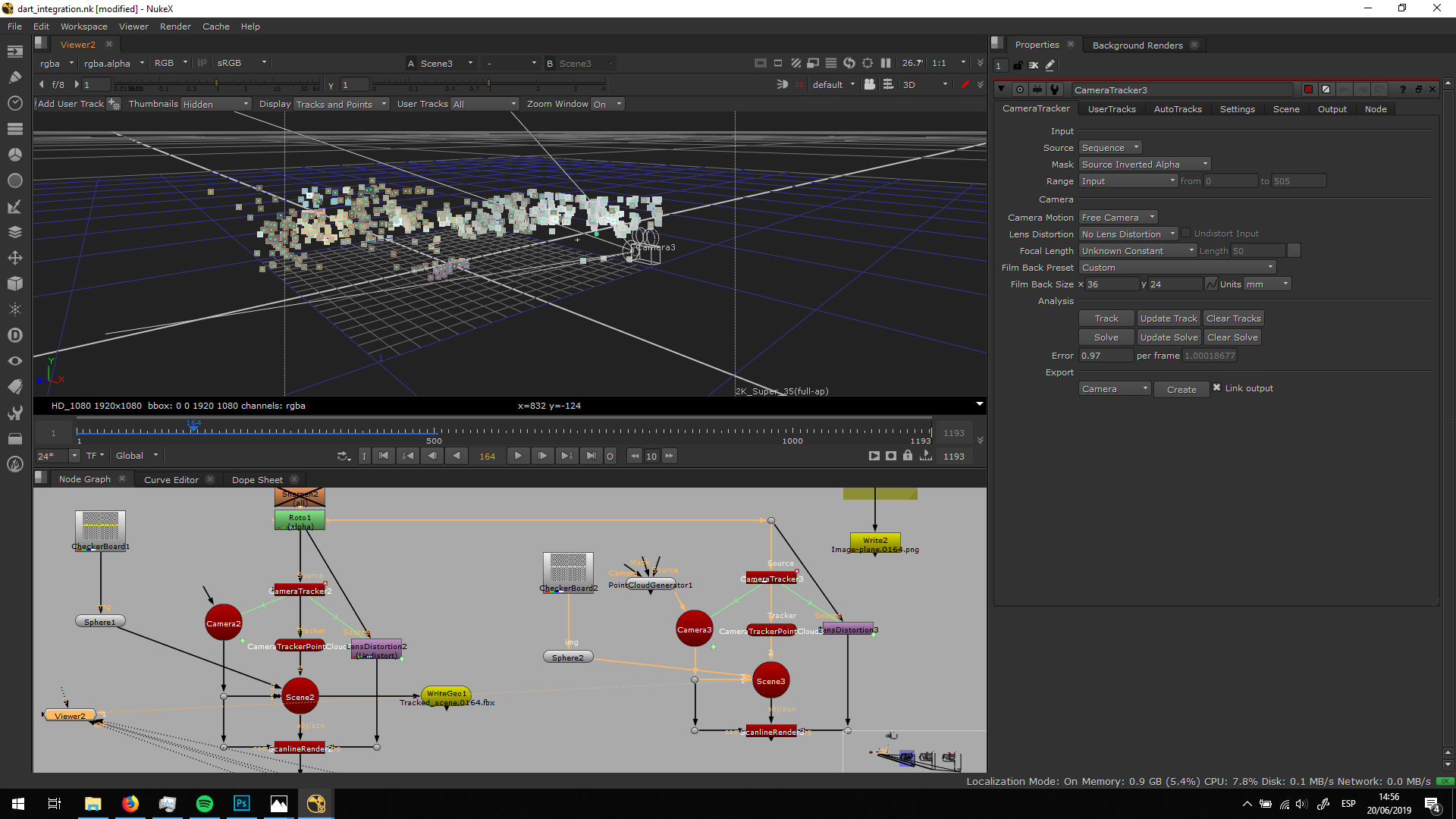
Now, the scene is create in a 3D environment, we can see that the camera is also placed.
Add geometry
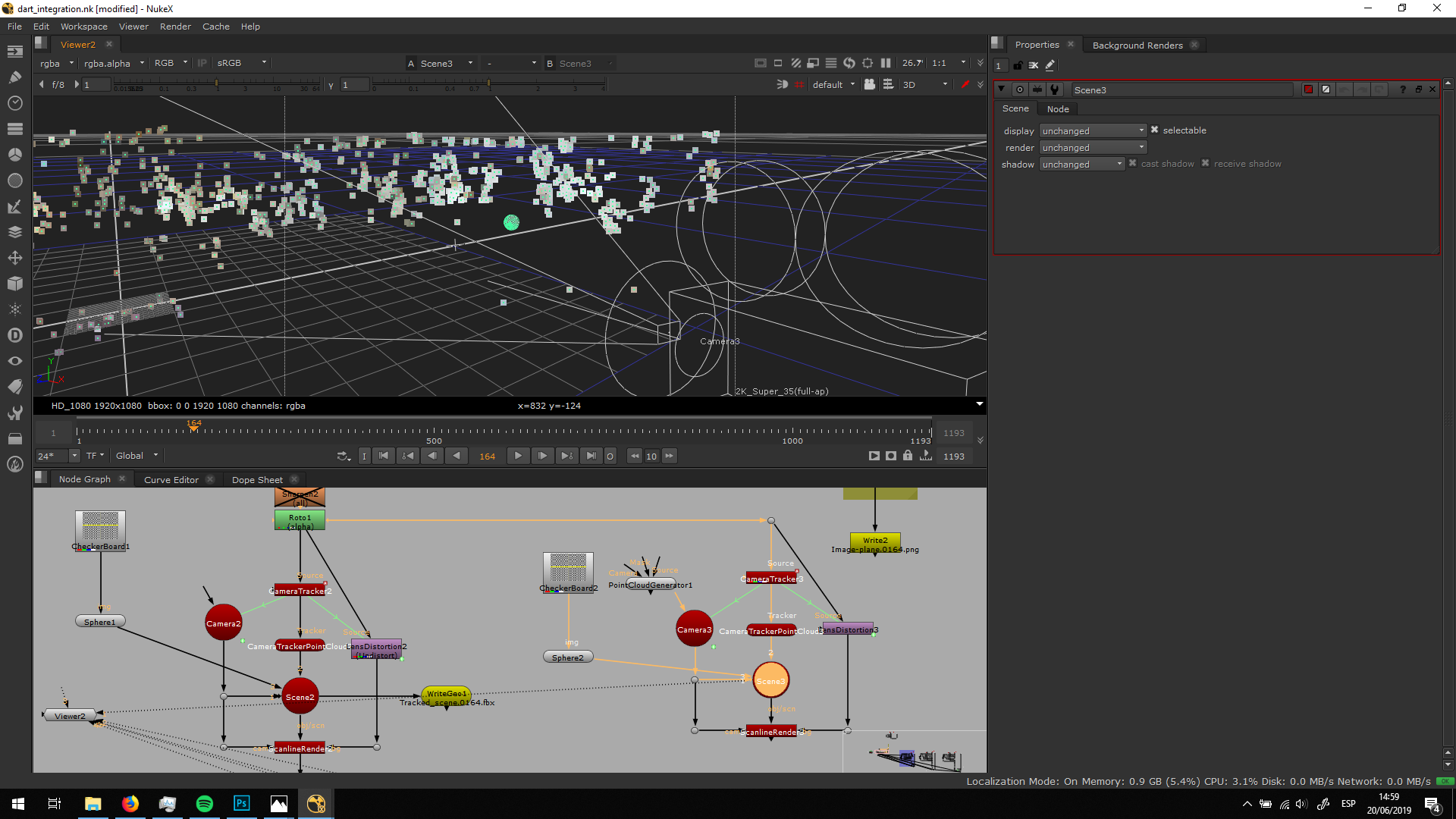
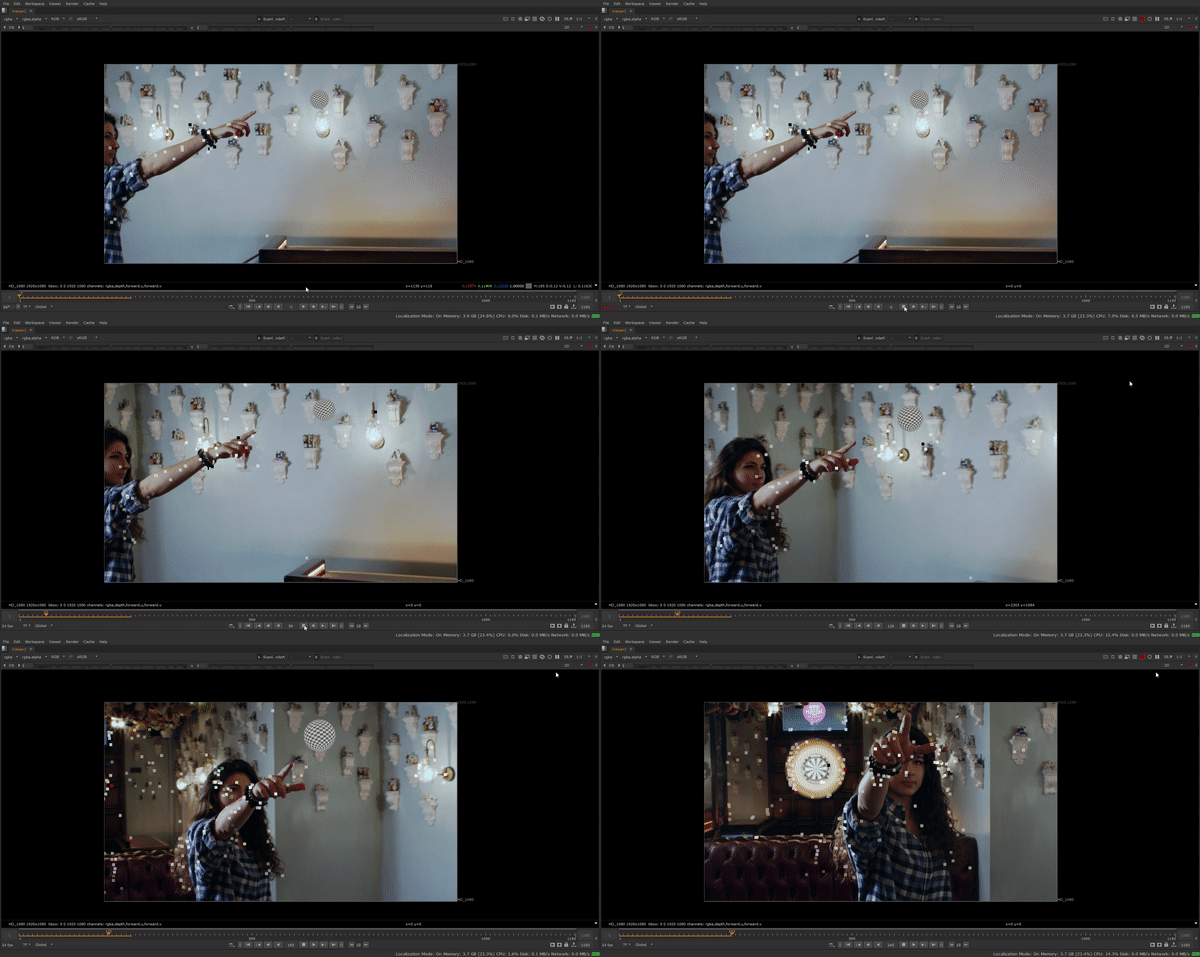
Now, I added a sphere in the place in which I want the dart to be. I added the sphere in the 3D scene, and Nuke tracks it automatically in 2D.
Export the scene
Finally, we are going to export the scene to import it in Maya. We will need to export it in FBX format, is the universal format for 3D elements. When exporting, we will export the tracking marks, the camera with the movement, and the sphere we added. 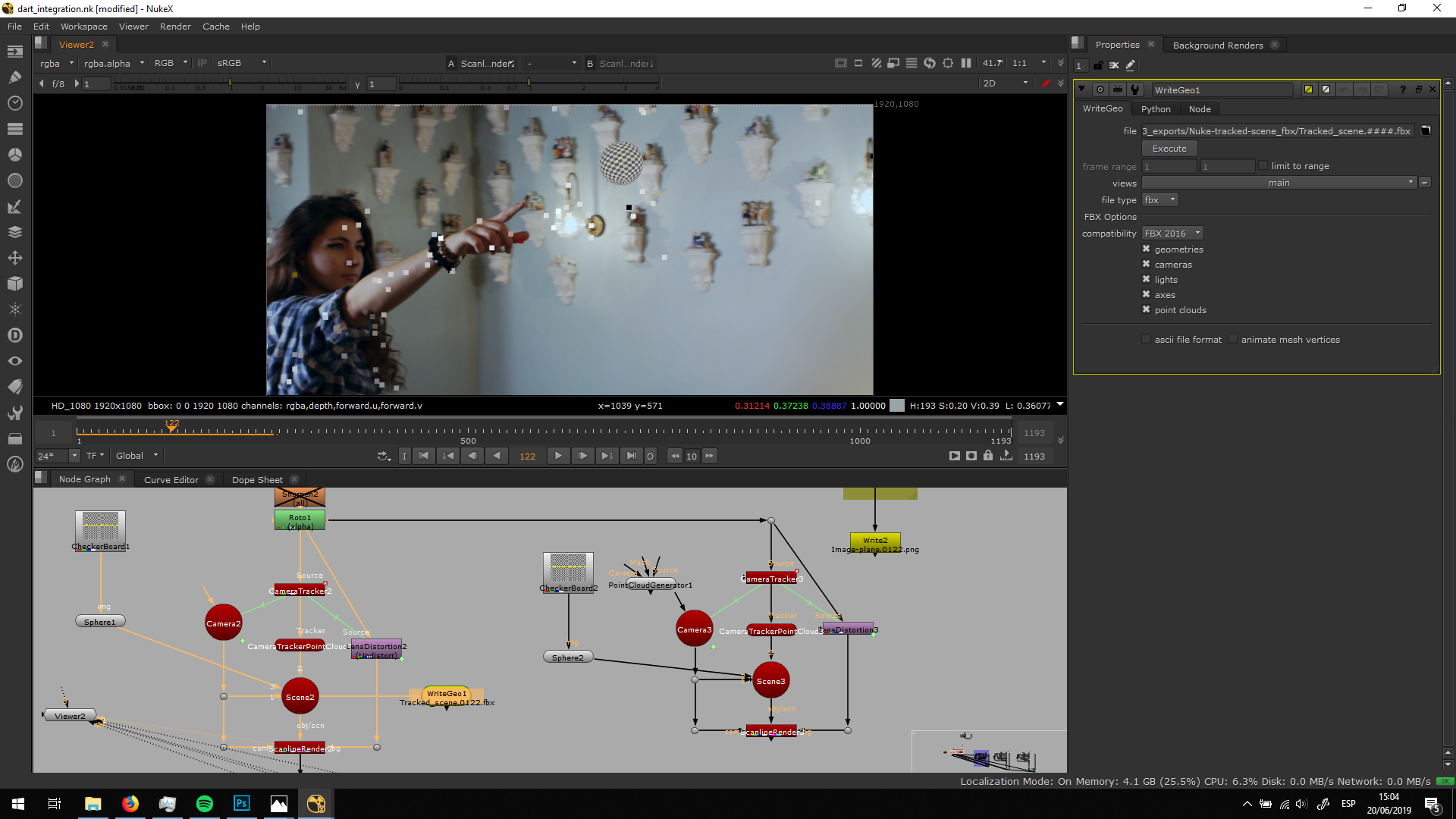
Place the dart in Maya
When importing the scene in Maya, we will be able to see the tracking points as locators, the camera and the sphere.
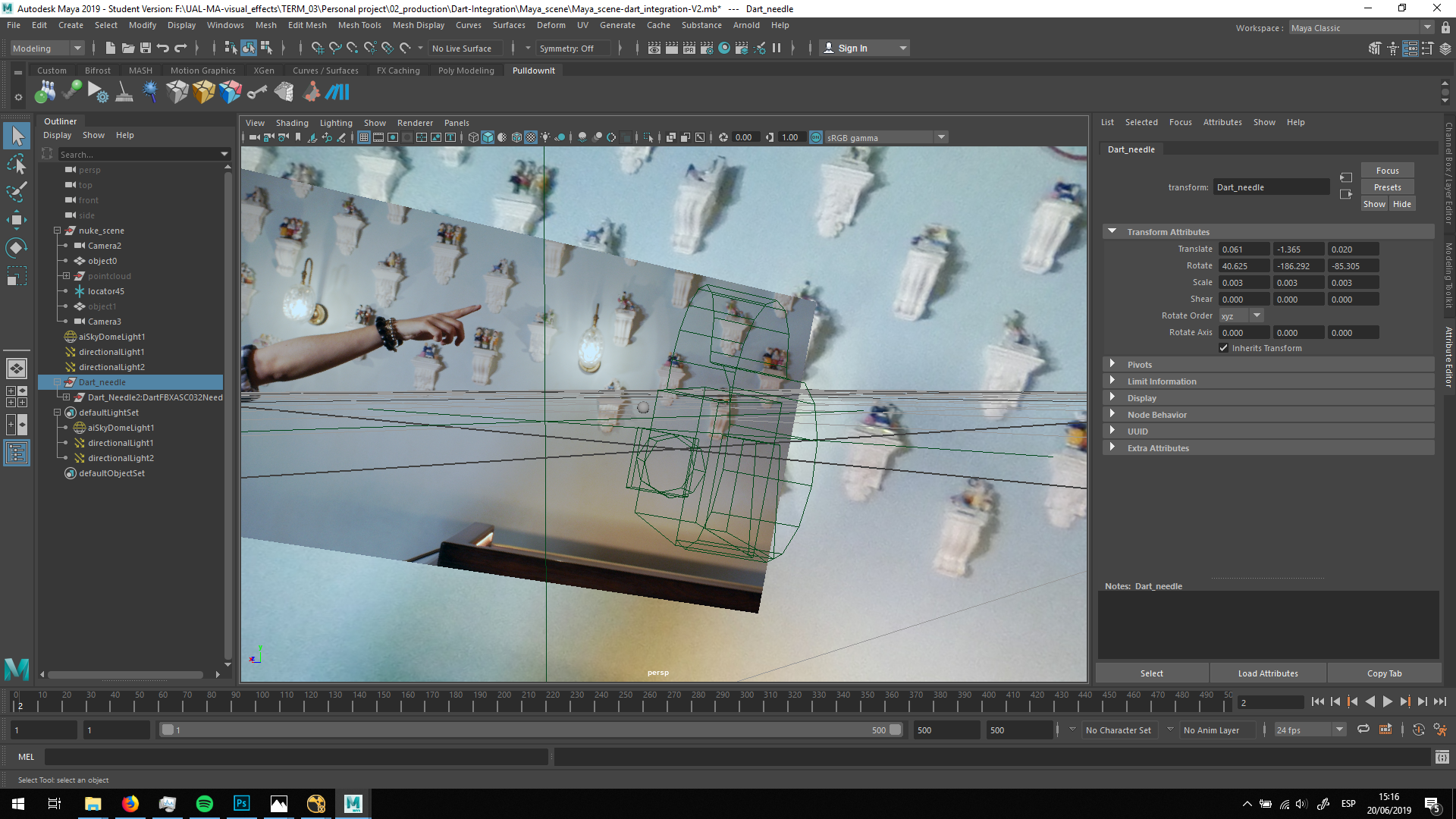
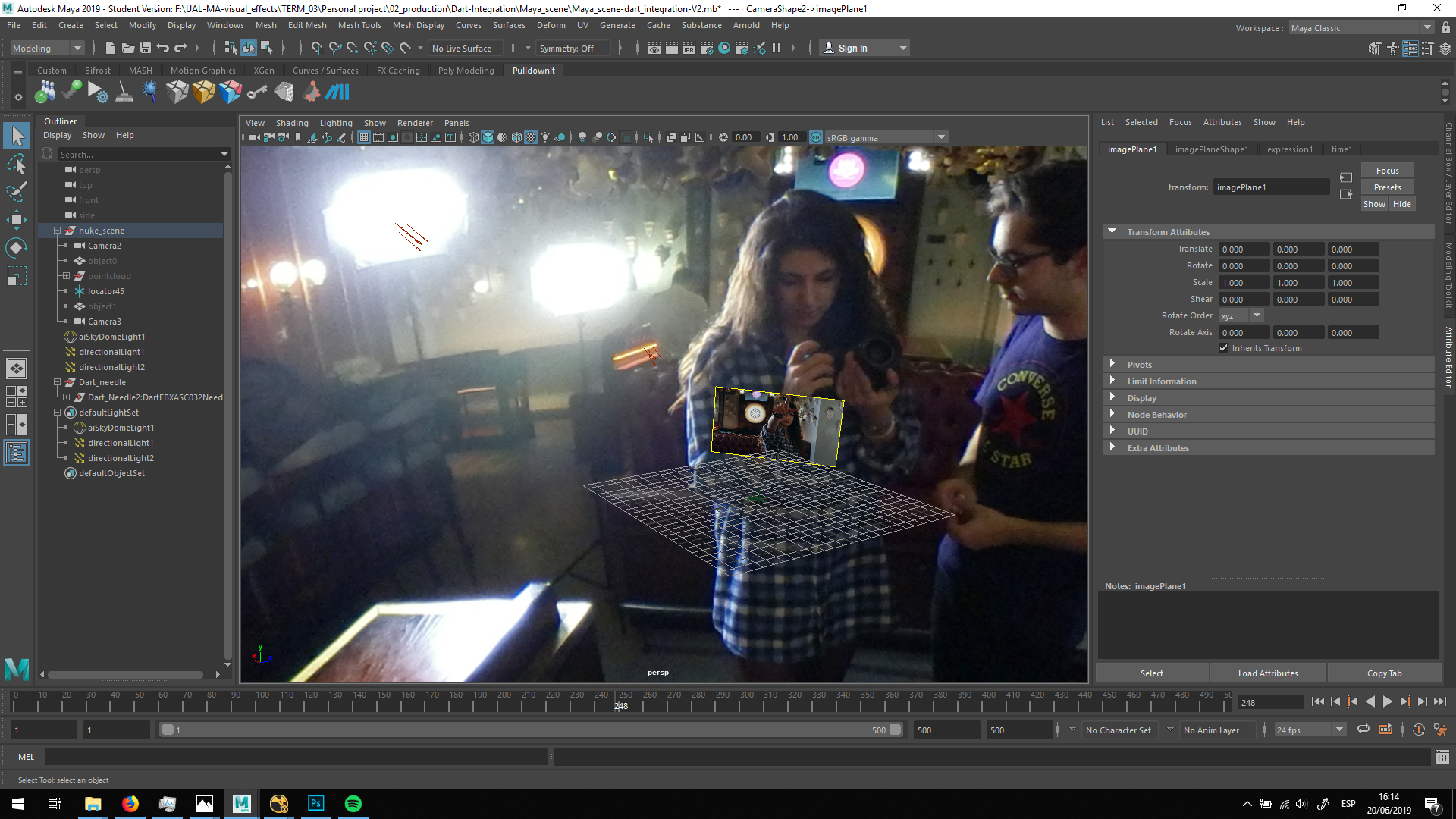
In order to have a reference, we can place our footage as an image plane, and se eit through the camera. If we preview the look of camera 2 with the video in the background, we will be able to see a preview of how the 3D elements will behave over the video.
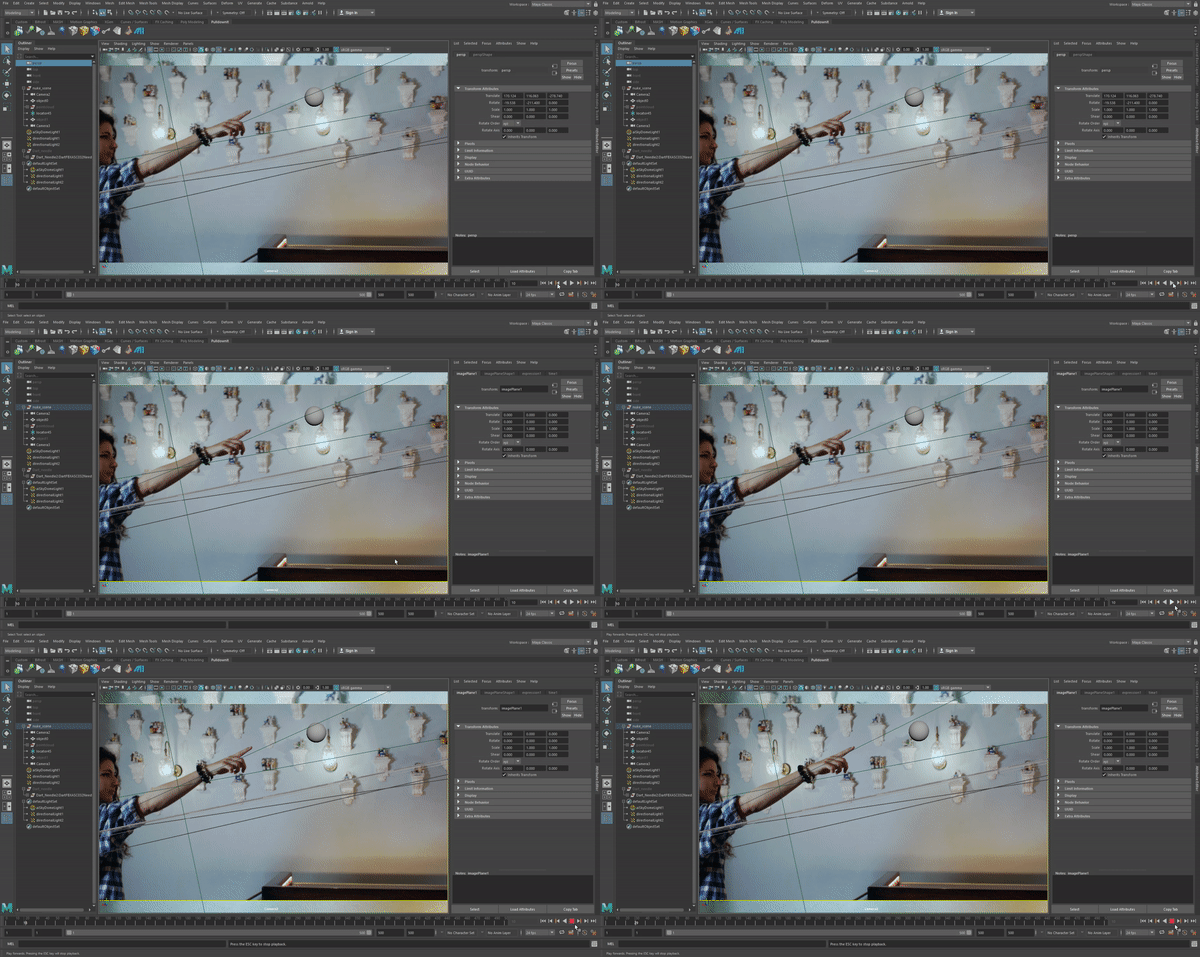
Place the dart
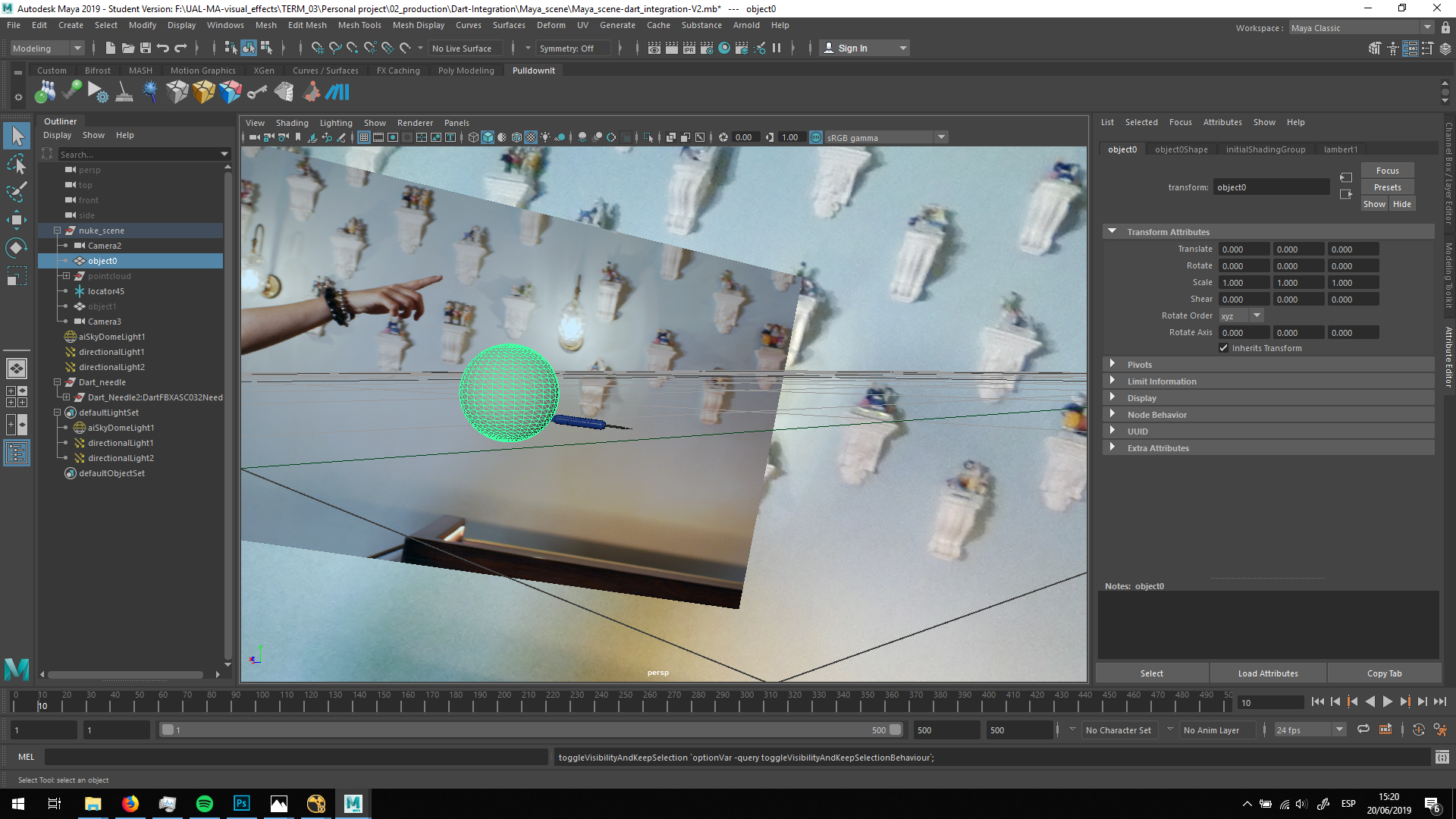
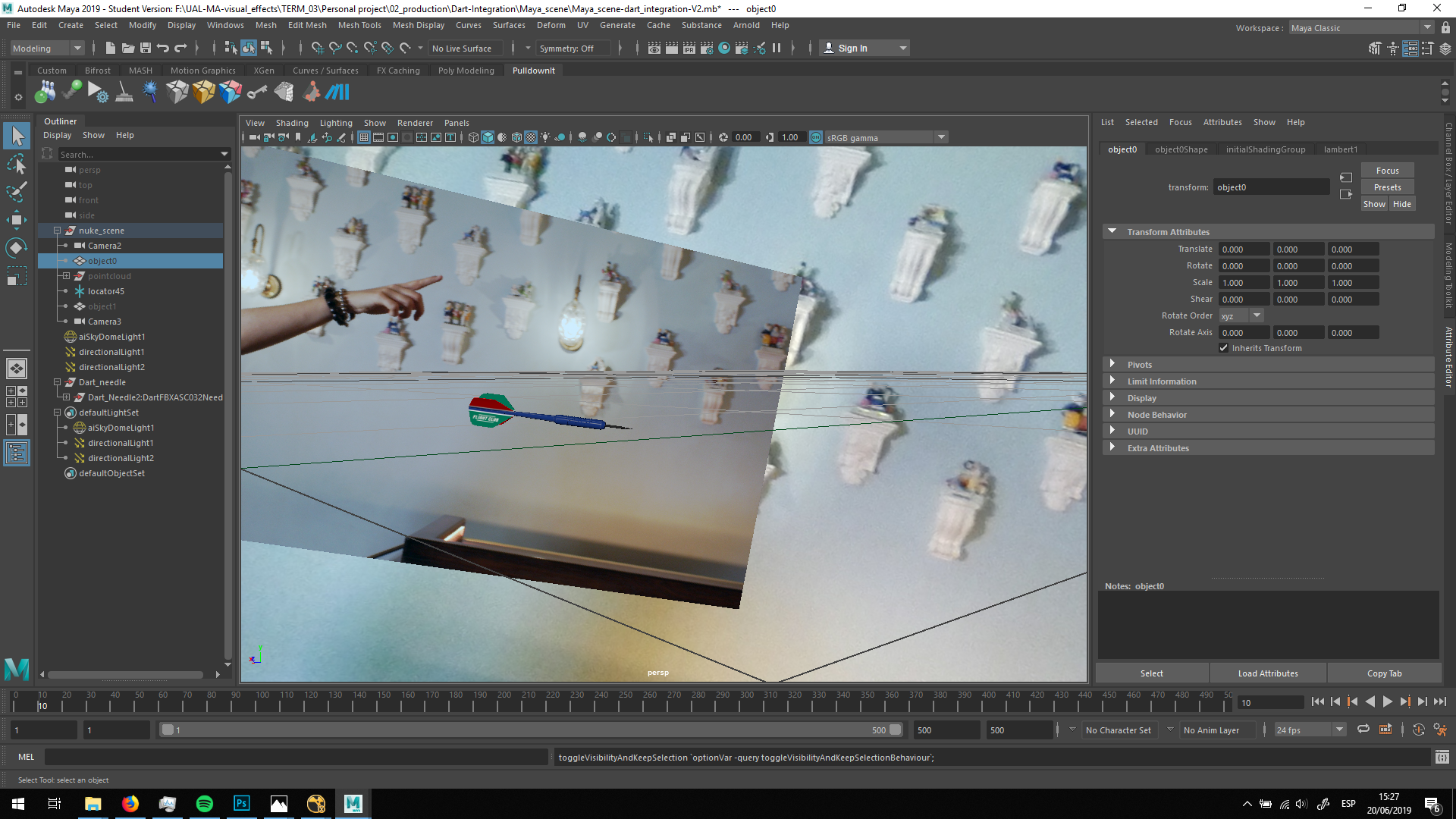
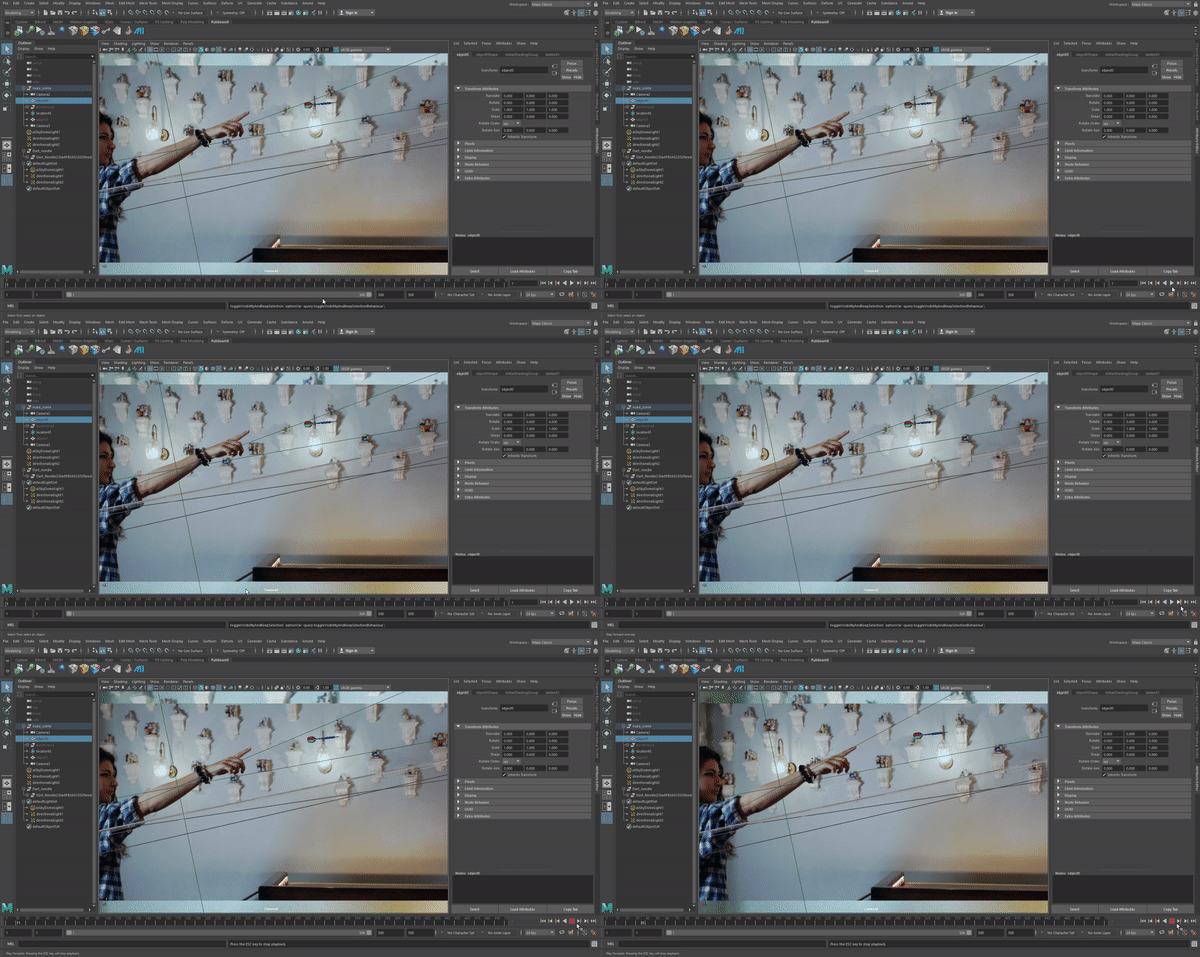
Now, I imported the dart in this scene and I placed it where I want it to be, switching the view from the 3D space into the 2D view.
Lighting
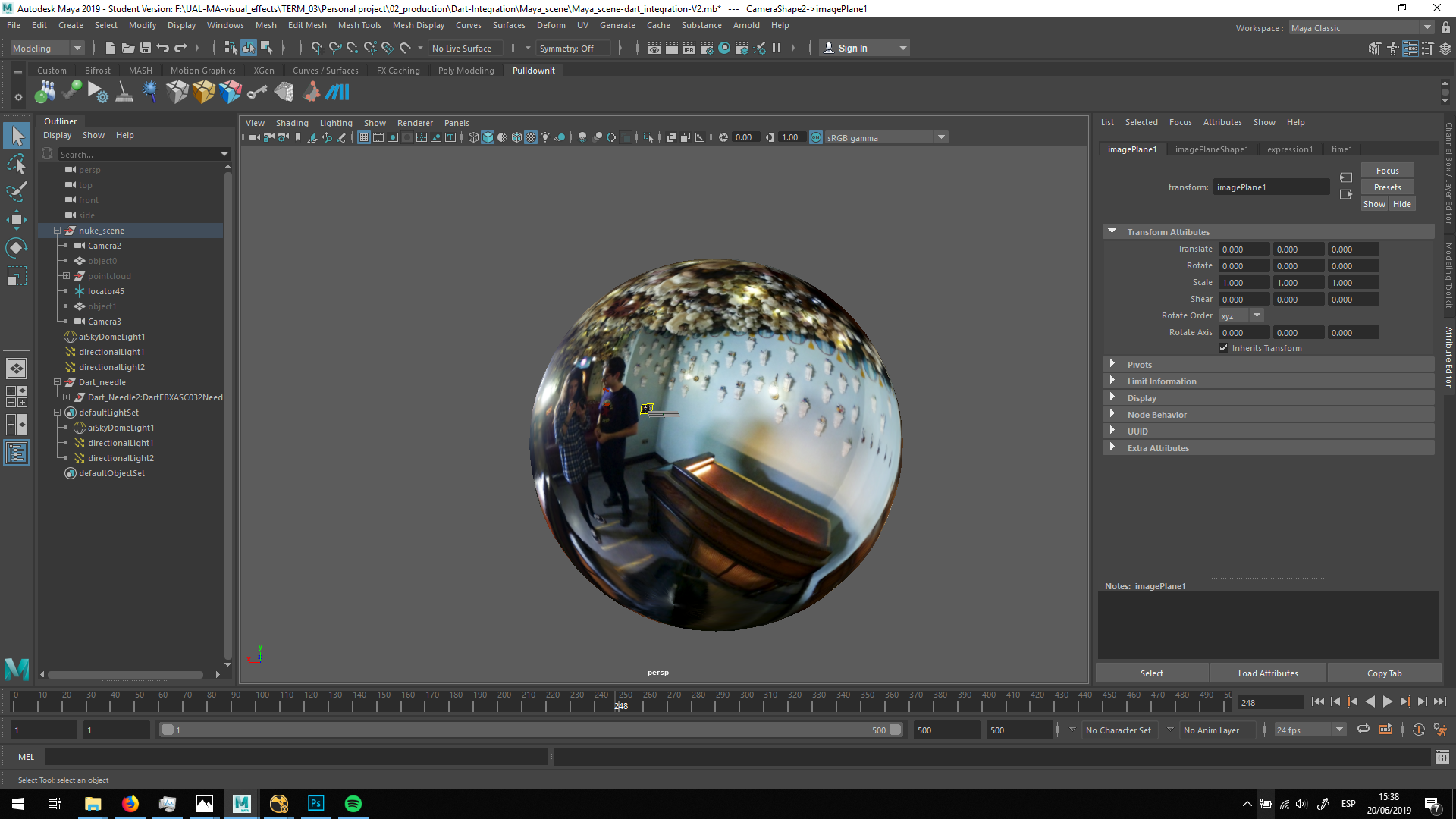
The first thing I did for the lighting is placing a Skydome light with the HDRI 360 degreed picture.
This will help to emitte the same lighting that the object should recieve if it was placed in the set.
Hving that as a reference, I added some directional lights matching the lights of the set.
Render
Finally, when I was happy with the result I made the render.
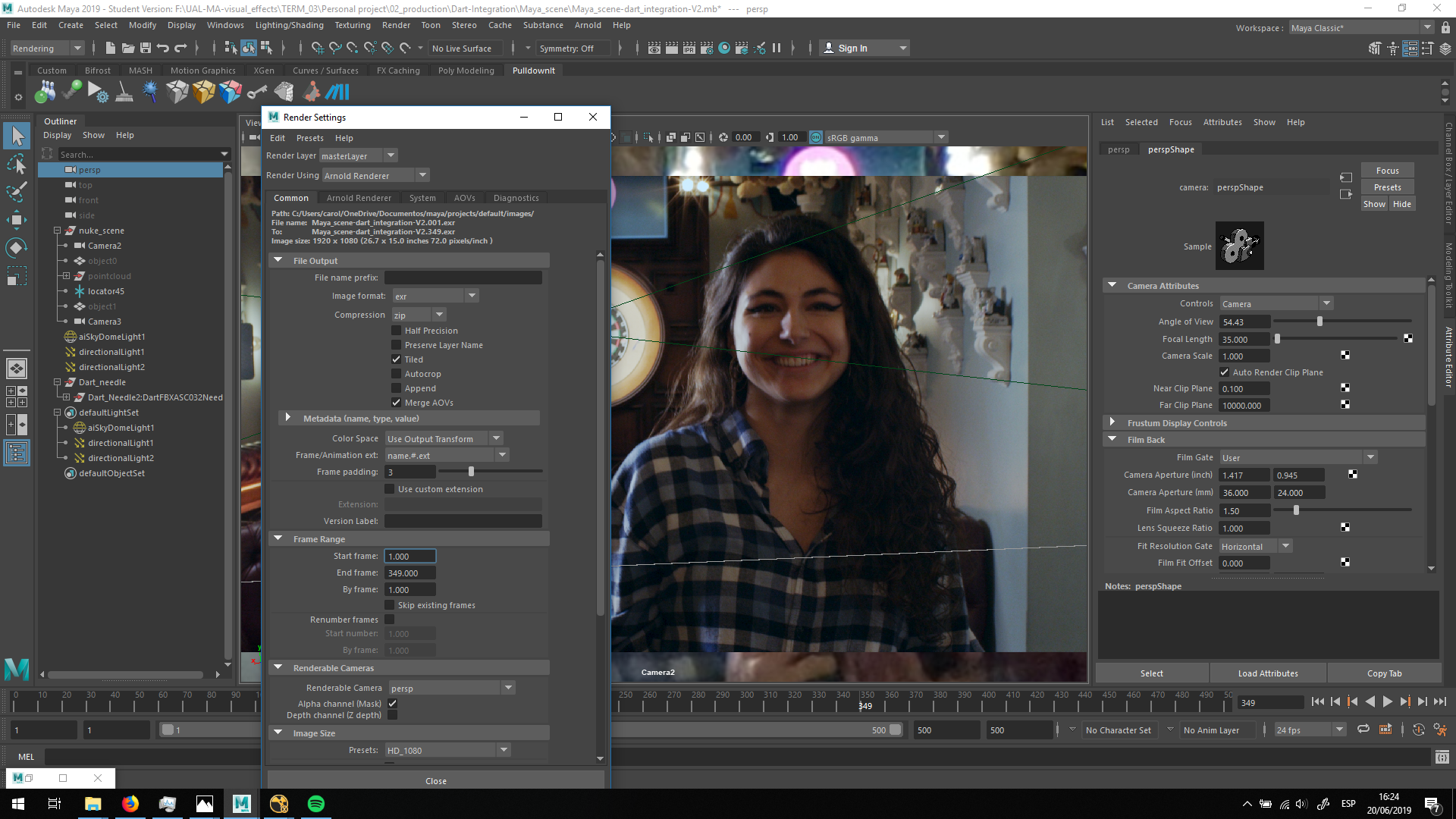
We will render it in EXR format, in which we are going to be able to include all the different passes of the dart.
Therefore, we will need to see all the passes and decide which passes we want to inglude in the EXR, thinking if they can be useful for the integration. I setted all the basic settings first. Ity is important to click the option Merge AOVs so we do not have one file sequence for each pass.
Now, we can view all the passes and include the ones we are interested in render.
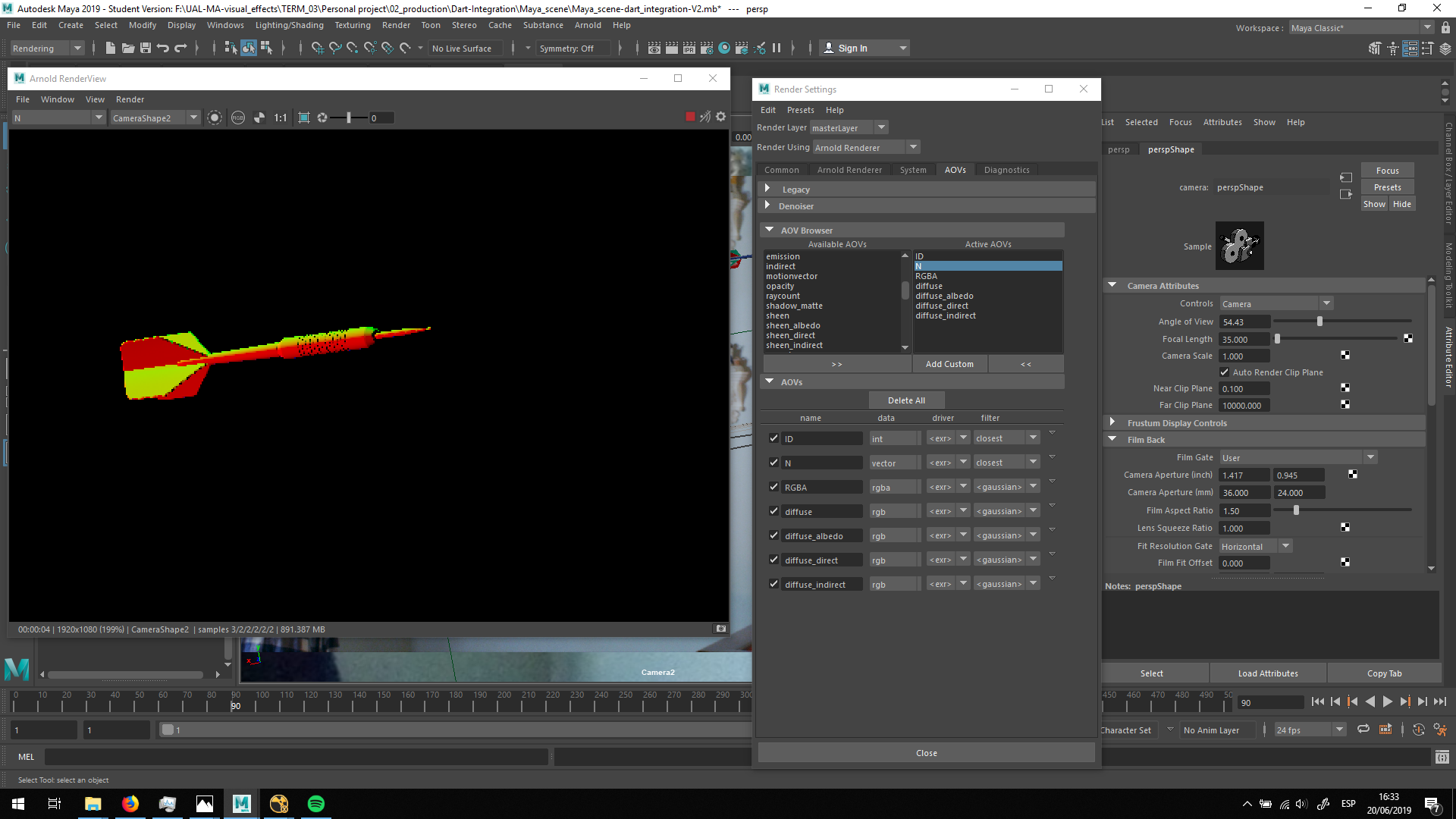
Finally, we are ready to render and do the integration in Nuke.


